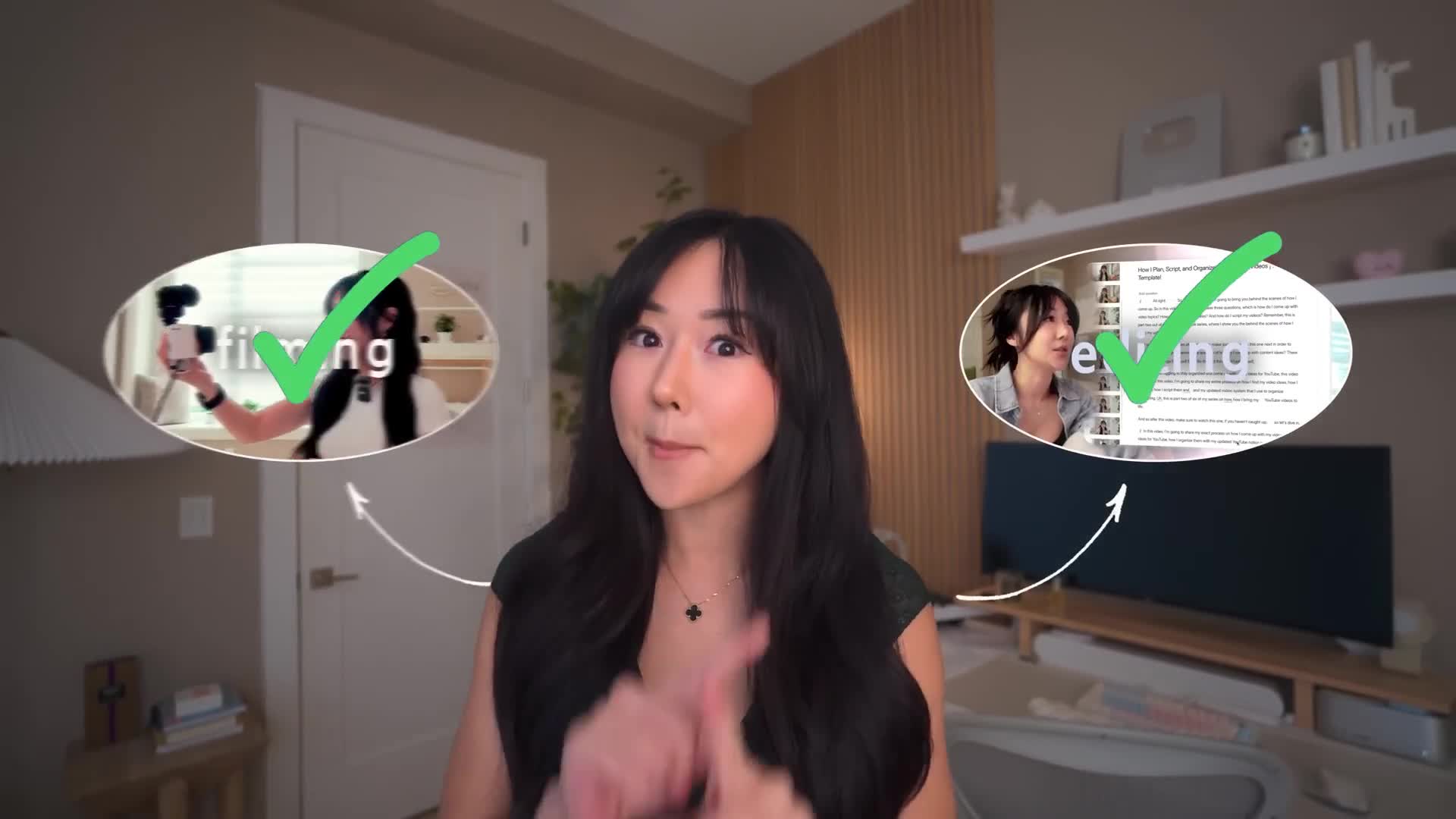
So you filmed and edited your video and you think you're done, but you're not in this video.
I'm going to share the 17 things that I do after I've uploaded my YouTube videos to make sure people actually see the content that I put so much effort into.
Now this is the final part of my six part YouTube series where show the behind the scenes of how I bring my videos to life.
So in case you missed anything, make sure you watch this playlist afterwards to catch up.
Now, without further ado, let me show you how I get more views on my videos.
Now, the first thing that I do happens even before I've uploaded my video, and that is making sure my file name of the video that I'm uploading matches the title that I'm thinking of uploading with, or at least include some keywords on what the video is about.
So let's save my videos about how to script on YouTube.
I'll make sure that the keywords YouTube and scripting are in the file name.
This is basically what's called metadata.
It's giving YouTube context on what my video is about, so that it can push my video to the right people.
Now, are you going to not get views by not doing this?
No, absolutely not.
I've had tons of videos where I've accidentally forgotten to name the file name and I still got many views on my videos.
But this is just an extra step that I do to make sure I'm maximizing everything that YouTube has to offer.
Now, as for the title and thumbnail, I do have separate videos talking about how I come up with video ideas and how I structure my titles, as well as a step-by-step tutorial on how I design my thumbnail.
So make sure you check out these videos afterwards.
But all in all, the packaging of your video is one of the most important factors of why someone will click on your video to watch it.
But one thing I want you to make sure you don't worry about is these can always be changed afterwards.
And we're going to talk about AB testing later on in this video.
So do not worry about that.
But basically, once I've uploaded my video with the file name, the title and the thumbnail that I've planned, the next thing is the keywords.
Now, if you've watched my previous videos in this YouTube series, you would have known that I script my videos in depth inside notion.
And so what I'll do is I'll copy and paste my script into chat GPT And then I will ask ChatGPT to come up with relevant keywords that would help people find my video easier on YouTube that fit the 500 word limit.
Afterwards I'll then move on to the description and, using the same keywords that ChatGPT gave me, I will ask ChatGPT to give me a description using those keywords that give the viewer a really good idea of what my video is about.
Once ChatGPT gives me that description, I'll paste it in my description as well.
Now a little pro tip is the rest of my description is actually a template.
And what you want to do is you want to go into your settings, click upload defaults and then put a template of what you want your description to usually be like.
This is where I'll put general affiliate links, my socials, all those things like that.
And so that makes sure that every time I upload a video, I don't have to rewrite that part of the description.
And it's a template that's automatically always going to be there.
Now, of course, in every video I might say some one-off call to action or one-off affiliate link or one-off resource.
And so in the description, I will add those one-off resources as well, depending on the video.
Now by adding these keywords and the title and the file name and the keyword section in the description again, this is all data that I'm giving to YouTube so that it can properly categorize my video and show it to the right people in the algorithm.
But another great way to add keywords is the chapters.
And so how I add my chapters is I use to buddy.
And, by the way, if you want 20 off any plan on to buddy, make sure you use the code Vanessa's buddy to get that 20 off.
Totally worth it.
But anyways, I use the two buddy feature to write my caption.
So what it does is, when I click into the feature, I'm able to add my chapters while watching the video.
And usually I will watch my video at two X speed while adding all of the chapters inside.
What I have found is chapters are really great way to add keywords to really give more context to YouTube on what your video is about.
And I also found that most viewers do prefer having chapters and it enhances the viewing experience.
Now, once you've done all the chapters, all you have to do is copy to clipboard, and then you can paste it into the description of your video.
Now it has to be pasted into the description in order for the chapters to actually show up when people are watching your video.
Now, at the same time, while I'm watching the video at two XP doing my chapters, I'm also keeping track on whether or not I've mentioned other videos of mine in that particular video, so that I can keep track on when to put the video cards in.
Now video cards are the little pop-ups that show up on the top right of watching a YouTube video.
And usually people can click on that and it will lead them to another video that you might be referring to.
So when I'm doing my chapters, I like to kill two birds with one stone and basically do both at the same time.
Now, if there are cards that I need to add, then I'll just head over to the card section and then add those cards at those specific timestamps that I've taken note of.
Next is the end screen.
So in this video, I talked about the importance of being very specific on which video you want your viewer to watch.
Next, after the video is done.
And so, for example, if I'm doing a video about scripting on YouTube, then in the last 30 seconds of the video I'm going to say Hey, if you like this video about scripting, then make sure you watch this video where I talk about how to film your videos.
And so when you're really hyper-specific, you're going to get way more clicks on that next video, which then will increase your watch time here on YouTube, versus if you're really generic, then most times people aren't going to click.
And you can see the data here that I definitely got more clicks.
The moment I got hyper-specific on what video I want people to watch next.
And so when I'm doing my end screens, I will then add that specific video that I mentioned in addition to my YouTube subscribe button.
Now my biggest advice here is to really just pick one video.
I know you have options to add two videos, but what I have found is you get way better results when you give people just that one option.
After doing the end screens, I will then add the video to the relevant playlist.
I think it belongs in.
Now a pro tip is over on your homepage.
On your YouTube channel you want to click on customize channel home tab, add section and then add a single playlist.
This will create really nice sections on your homepage that feature your content pillars.
This is really helpful because if someone's going onto your page looking for a specific topic, everything is there and it creates binge ability.
So if you're coming into my channel wanting to learn more about YouTube now, you can clearly see I have a whole playlist about YouTube and that's going to increase the chances of you watching more of my videos.
But beyond that, you're going to want to create playlists, because now you can leverage the list link hack.
Now what that means is when you go into your homepage and you click play all for a specific playlist, on the top of the URL there's going to be an and list code.
If you copy that code and you paste it after any URL on YouTube, if someone clicks that link, automatically all of your videos within that playlist is going to show up on the right hand side.
And it guarantees that after that person is done watching the original video, the next video that's going to autoplay is going to be one of your videos in that playlist.
So how I've used this hack in the past is I have a newsletter that I write and usually I promote my YouTube videos in that newsletter.
So let's say I'm doing this YouTube series.
Instead of just pasting the regular YouTube link, I'm going to go into my YouTube series playlist, copy the analyst link, paste it into the end of the URL of the video that I want to promote and then send that off into my newsletter.
That ensures that when someone clicks on that link, they're not only going to be able to watch my video, but also they're going to see all the other videos, specifically in my YouTube series playlist.
What I've also done in the past is let's say I'm sharing a video.
That's not even mine.
Let's say it's a podcast interview that I really enjoyed by pasting one of the analyst links from any of my playlists.
This ensures that even though that person is watching a video, that's not even mine.
The next video that's going to play is going to be mine.
And also they have visibility of all of my playlists of the right side of that video page.
Personally, ever since learning about the analyst link, it has been a game changing for me, because a lot of people actually just leave their YouTube on.
And so this is a really great way to get free views, but it's also a really great way to just earn more visibility on the other videos that you've created.
Now, once I've added my video to the right playlist, the next thing that I do is I write a pin comment.
Now this is important because you want to stimulate engagement in your community.
And usually the first 24 hours of your video being uploaded, is really crucial to make sure that the algorithm knows that this video is gaining a lot of traction.
And so I will always put a call to action or a question to stimulate conversation in the comment section.
Now you want to make sure that you do this while your video is unlisted, because I believe that if your video is set to private, you're not going to be able to do this.
I always do this before I even schedule my videos.
Once I've added my pin comment, now my video is ready to schedule.
And so then, I will just schedule my video and then move on to the next thing that I do, which is go over to the community tab.
Now in my video where I talked about how I edit my videos and how I repurpose my long form to short form and how I create shifts.
I will then use the community tab, upload the GIF that I've created that's related to the video, and then share a short blurb on what my video is about to entice people to click.
I will then also paste the link to my video.
Now I am doing this before my videos actually live, because I do not want to be waking up at 6am doing all this stuff.
And so I will then schedule my community post to go out.
I usually schedule it 15 minutes after my videos uploaded.
I don't know why I do this.
I think it's just to make sure that there's a buffer, and if there's anything wrong with my original upload, then at least I can fix it before my community post goes out.
Now, at this point of the video, you probably think I'm done, but I am not, because the next step is I go to my favorite tool right now, which is YT open app.
What YT open app is, is it basically creates deep links.
So when someone clicks on that link on mobile, it's going to automatically open that video in the YouTube app.
Whereas if you were using the regular YouTube link and you paste it in your Instagram stories or your Lincoln bio, if someone clicks on it, it just opens up in the web browser and they have to take that extra step to open it in app.
And I just find it to be more friction.
And so to create a more frictionless process, I use YT open app to create a smart link.
So what I do is I click on smart link.
I paste my YouTube URL, and then afterwards I will click the edit button.
I will then give a name for my smart link.
So it's not just all gibberish.
And then I will also edit the appearance if needed.
Usually the title and the thumbnail and the description will auto populate.
But if it doesn't, you can actually upload the thumbnail title and description manually.
Now this is the final link that I will actually use to promote in my Instagram stories, in my DMS with many chat and also in my link in bio.
And one bonus tip here is you can actually combine the list link hack that I showed you previously in the video with this deep link hack as well.
So, as a reminder, to get the list link, you want to go into your homepage and with any playlist you want to click on play all, and then you're going to want to copy this and list code.
Then let's say I want to promote this video, which is how to film YouTube videos.
And I want it so that when people click on my link that I share with them on mobile, it's going to be using the analyst tax.
I'm going to make sure that I delete anything that is not the main YouTube link.
And then I'm going to paste that analyst code that we just copied.
Then I'm going to copy this head over to open in app.
Then click on smart link, paste it in there and then generate that link.
What's going to happen is when I share this link over on my Instagram stories and someone clicks on it and it directs them to the mobile app instead of showing comments or other people's videos.
It's going to automatically show my videos, even on mobile.
Now, speaking of the Lincoln bio, that is the next thing that I do.
I head over to the website that I use for my Lincoln bio, which is Squarespace is bio site.
I really like this tool because number one, it's free.
And also, I feel like out of all the Lincoln bio tools that I've used in the past, this one does a really good job with showcasing my videos for YouTube.
And I really think it's really aesthetic.
And so I will go into my bio site and paste the deep link that I just generated.
Now, the next thing I want to talk about is short form videos.
Now, if you watch my video about how I edit my YouTube videos and how I turn my long form videos into short form clips like this, you would have seen that for any long form video I do, I usually have a lot of short from clips that I can put on Instagram or Tik TOK or YouTube shorts.
Now what I do is for every short form video that I post on Instagram that is related to my long form content.
I will always have a call to action in the caption and within the video itself by telling people if you liked this video, comment this specific keyword and I will send you the full length YouTube video.
I find this to be a really effective way to get the interest of people who might've seen the short form clip to watch the full video that you've posted.
Now I use many chat to automate this because I have a bigger audience.
It would be really hard for me to send the specific link to each and every person that commented that keyword.
And so let me show you how I set that up.
So once you've created your account on ManyChat, you want to click on new automation and choose this template, which is auto DM.
Links from comments.
Now you're going to have two options whether you want your automation to trigger on a specific poster reel or any poster reel.
Now I like any poster reel because I post a lot of short form clips about the same video.
And so this is more effective for me.
Now, the next step is to choose the specific keyword that you want to trigger the automation.
Now, in this specific case, I want to promote this video, which is 13 secrets to content creation.
If you were someone who is a beginner to many chat, you might choose the keyword secrets or content creation, but the problem is that people in general write those words anyways.
And so there's might be a chance that someone might write secrets or content creation in a totally unrelated post.
And then it's going to trigger this automation that they didn't necessarily ask for.
And so you kind of want to choose a keyword that's specific enough so that people aren't commenting that word in general, other than wanting this specific trigger to happen.
And so, in my case, I'm going to choose YT secrets, because not a lot of people are ever going to comment YT secrets on my other posts.
Next, you want to decide what the copy is going to be when you first DM them.
In my case, I like to remind people as to why I'm DMing them in the first place.
So I'll remind them that, Hey, thanks for commenting YT secrets on my post.
Here's a link to the full video where I talk about the 13 things I wish I knew sooner about content creation.
These things would have prevented me from burning down my seven creations. your business.
And then I make it really clear that they need to click this button in order for me to send the video.
As of recently, I think many chat updated their policies so that there has to be a double opt-in.
And so I'll write, just click the button below and I'll send you the video.
Then down below, you're then going to want to write a follow-up DM.
That's going to actually have the link to your video.
And so, in my case, I'm just going to put here's the link to the full video and remind them again that they need to click the button.
Then I'm going to add the link.
As you guys know, I use YT open app to create deep links on mobile.
And if you guys somehow skipped to this part of the video and you didn't watch the full video, make sure you check out the chapters where I talk all about how and why I create deep links.
But anyways, I'm going to paste my YT open app in here.
That's going to open up my video.
And then I'm going to label the button.
In my case, I just labeled it watch video here.
And then you're done.
But what I also like to do is I like to automate the public reply to the keyword when they post on my comment section.
That way it confirms to people that I'm going to be sending them the video via DM.
Now many chat already has three templates there, but you can always change this.
What this basically means is that it's going to rotate between these three responses so that it doesn't look too obvious that you're using a bot.
Now for me.
I'm pretty transparent with my audience that it is a bot, just because of the audience size.
There is no way that I'm going to be able to send a DM to hundreds of people every time I post a short form video.
But again, these are things that you can always change according to your brand voice.
Once that's all done, I'm then going to click go live.
So here as a test, you can see that i commented yt secrets and i responded.
Link sent to your dms.
Did you get it?
That was one of my automated responses.
I'm going to go to my dms and i can see that the automation worked.
So it says thanks for commenting yt secrets on my post.
I clicked on send me the link and then afterwards it sent me the button where i can watch the video and, because i use the yt open app, link it automatically Now.
Personally for me, I find the step of adding the keyword directly into the actual video itself.
So that shows up visually is really important, because not a lot of people read the caption, especially if they're just scrolling on the explore page page.
Now I made a mistake once where I completely forgot to do this.
And my short form video actually went semi viral.
And now it has more views than the actual original video itself.
If I had only remembered to add that little pop-up in this video, who knows, maybe this video would have gotten more views than it has now.
Next, let's talk about Instagram stories.
Now, when my video is live, I will have around three stories total that promote my actual video.
The first story is typically me resharing one of the Instagram reels that I might've repurposed from that long form video.
I will typically pick one of the short form videos that I feel most excited about to post or that I feel might peak viewer interest the most.
Now.
The second story will then be a photo of the thumbnail and the title of the video, with more context as to why I think people should watch, including an actual link to the video.
Now again, the link that I'm going to paste is going to be the deep link that I created from YT open app to make sure that it is a frictionless experience.
And when people click it, it's going to automatically open the YouTube app for them.
Afterwards.
The third story of my video is typically a screen recording of me scrolling through the full video.
I really like this because it shows all the chapters.
It gives people a visual idea of what the video is about.
It might peak interest.
And then I'll overlay some music on top so that it's a little bit more of a vibe.
And again.
I will then have the link to my YouTube video, which again is the deep link that I've created on YT open app.
Now for those of you who have an iPhone and you're wondering how I'm able to record the screen if you don't have that feature.
You're going to want to go to your settings, go to control center and then find screen recording and drag it up to the top so that it ends up being in your actual control center.
This ensures that when you swipe down on your phone, you're going to be able to have the recording feature.
Now a bonus idea if you were someone who has a video editor, or maybe you have more time and more budget to spend is to actually create a 30 second trailer of your video showing the highlights and the climatic moments of your video.
To peak even more curiosity.
Now, again, stories do expire after 24 hours.
So you decide if that's worth it for you, but I have done this in the past and it also has been a really effective way to promote my videos.
Now, once I am done popping off on my Instagram promoting my video, the next thing that I will do is community engagement.
Now, to make my life easier, what I do is I will go into my YouTube analytics, click my latest video that I uploaded, and then I will click on comments.
This allows me to really zone in on the new comments that are on my actual video.
And I love how YouTube really organizes it for me and shows me what I haven't responded to yet and what I've already responded to, or who has a question?
And so this allows you to prioritize certain comments.
Now this is really important because number one, you want to feel really connected to your work.
And the best way to do that is to actually talk to the people that support and watch your videos which, by the way, thank you guys so much for leaving comments on my videos.
And then also, it's really great way to get feedback on your video and even get content ideas for future videos.
Beyond that, by showing interaction in the comment section, especially in the first 24 hours of your video, it does help the algorithm recognize that Hey, this video is getting a lot of engagement.
So let's push it out more in the algorithm.
Now, once I'm done dedicating hours to community engagement and, by the way, community engagement hours really depends on how many views you get on the video, how many comments you actually get.
But for me, community engagement is pretty much like the whole day.
But after I'm done community engagement, when I have some time, I will then mass schedule shorts.
So for every long form video, I typically have 10 to 20 short form videos that I can then use.
And so, when it comes to YouTube shorts, I will sit down and I will spend time to mass schedule all of them.
And the key here is when I'm scheduling them.
I will make sure that my shorts link back to my long form videos.
And you do this by clicking the related video option.
This ensures that when someone's watching your YouTube short, they're going to be able to be easily redirected to the long form video that that short form video came from.
And that's going to increase the amount of views that you get on that video.
Now, after a few days of my video being out maybe like three to four days I have a really good idea of whether this video is performing average, below average or above average to what I usually do on my channel.
Now if I noticed that something is really below average maybe the click through rate is not as high as what I typically get.
I will then consider AB testing.
Now I personally AB test using TubeBuddy with its legend license.
And I do understand that on YouTube, you can actually AB test thumbnails for free.
But what I like about TubeBuddy is I can also AB test the title.
Now, when I do AB testing, I never AB test multiple things at once.
You want to focus on one thing at a time.
So if you are AB testing thumbnail, then you just want to focus on AB testing thumbnail and not necessarily do title and thumbnail.
Or let's say you just want to do title, then you just want to focus on title.
And so if I'm noticing that my videos are underperforming, I will then decide do?
I think it's the title that could use some work.
Or do I think it's the thumbnail that I could use some work now?
Regardless of what it is, I will then use TubeBuddy to AB test what I think needs to change.
So, to give you an example, this video was posted about three days ago and it is not performing the way that I had hoped, compared to the average of my channel.
You can see that the views are down, the click-through rate is down and then the average view duration is down as well.
And so the only thing, that I can really control is the packaging of this video at this point.
And so, when I go into the actual video, when you have the TubeBuddy plugin, you're going to get these options here.
So I'm going to AB test this video to improve the performance by clicking on test alternatives.
For me personally, I have a feeling it might be the title.
And so I'm going to click on title and then click next.
I'm going to test until it reaches statistical significance, but that requires a thousand views on the video.
So if you are someone that has a smaller channel, I wouldn't recommend this option.
If you want to get results faster, I would actually recommend maybe doing it for 14 days instead.
Now for me, because I think I might have the traffic to be able to pull this off.
I'm going to click on this option right here.
Then I hit next.
I'm going to measure the success based on the click through rate and how many people are actually clicking the video.
Cause this is what I want to improve.
Now TubeBuddy is going to generate suggestions for me, but I actually went ahead on ChachiPD to ask for better alternatives to this title by asking questions like what title could appeal to beginner YouTubers looking to improve their thumbnail?
Cause that's what the video is a about, and other questions like what title would make viewers feel like they're getting insider secrets about thumbnails, or can you suggest intriguing video titles that spark curiosity about thumbnails?
And so based on these options, I'm going to choose the one that I want to test.
Now for me, historically on my channel titles that have the word how to, and it do typically well.
And so I'm going to choose this option right here to test.
I'm then going to put this title as what I want to test.
And then I'm going to click on start test and that's it.
That's all you have to do.
And what's going to happen is, when the test is done, TubeBuddy will send you an email to let you know.
You're then going to be able to go into the TubeBuddy homepage and then see the results of your AB test.
As you can see, I have another video where I'm AB testing that's still in progress, where I am testing the title.
Now for those of you who are interested in AB testing the thumbnail specifically.
This is what it would look like
As you can see with this video, I tested this thumbnail versus this one.
And as you can see, I was able to identify which one did better.
Now, if you are someone who wants to AB test, the same way that I do with all of this data, then make sure you use my code Vanessa's buddy for 20 off all licenses.
The legend license specifically on TubeBuddy is what you can use to AB test.
Now, if you are someone who's not ready to AB test in this way, you can also consider AB testing directly in the YouTube studio as well.
The only caveat is that it doesn't give you as much data as TubeBuddy and you can only AB test the thumbnails during the time that I'm filming this video.
So you can't AB test titles just quite yet.
All right.
So as you can see, there are a lot of things that you can do to optimize your videos.
And if you did learn something new today, please let me know in the comment section below.
Now this is part six of my six part YouTube series, where I share even more tips and tricks on how I bring my videos to life.
And so make sure you click on this playlist to watch the rest of the YouTube series.
I appreciate you guys so much.
Thanks for watching this video and I will see you in the next one.
Good luck with your channel and take care.